

Home › Modules › Upgrade & Lifecycle

Upgrade & Lifecycle
Know which devices run old firmware or are near end of support, plan upgrades, and keep before-and-after evidence that each one worked.
Choose Upgrade & Lifecycle if you want to…
Keep firmware current, see end-of-life dates and run staged upgrades.
- What to count
- The network devices whose firmware you manage: routers, switches, firewalls, access points.
- Example
- 8 switches, 2 firewalls and 20 access points: Upgrade & Lifecycle for 30.
Know what you're running
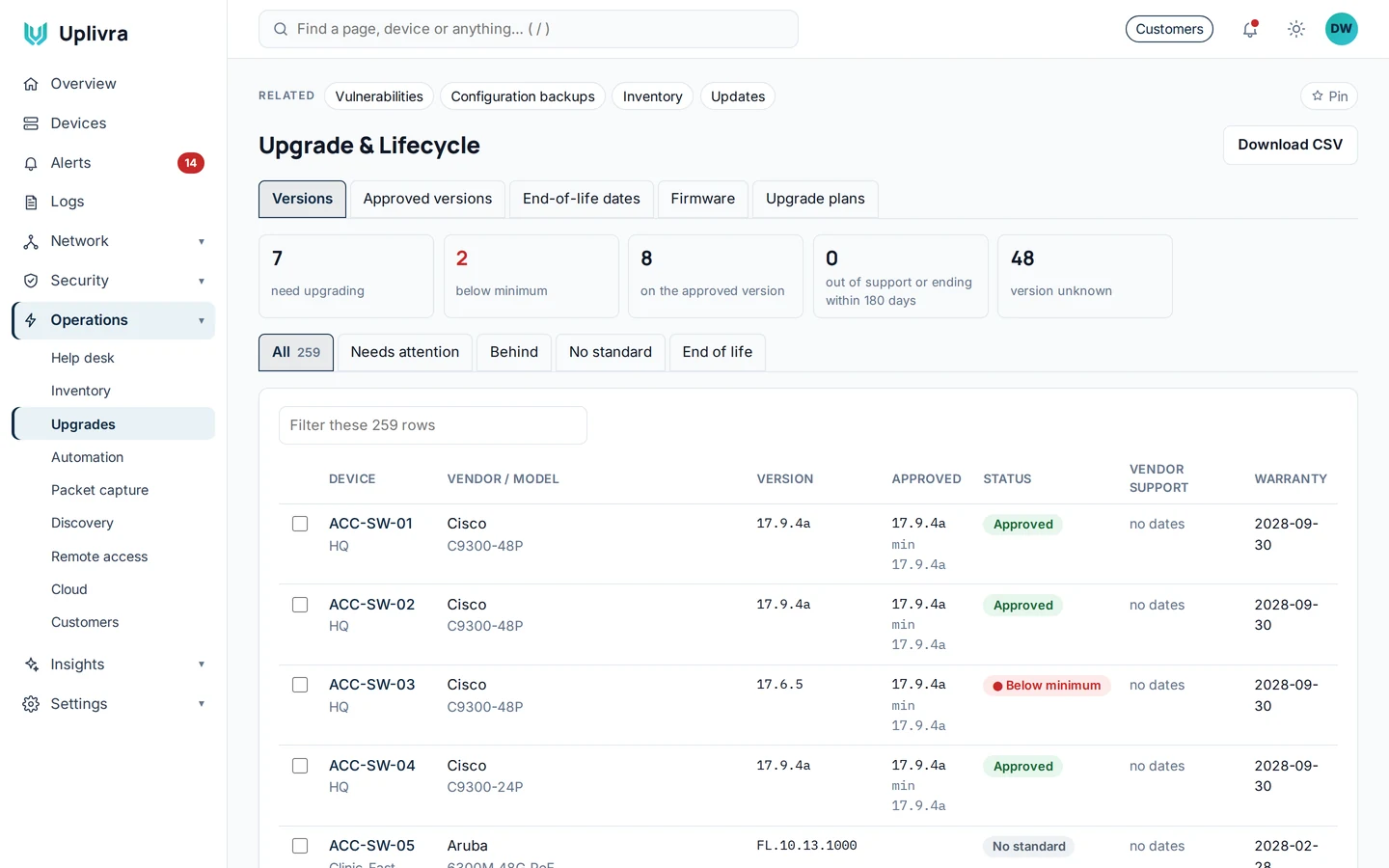
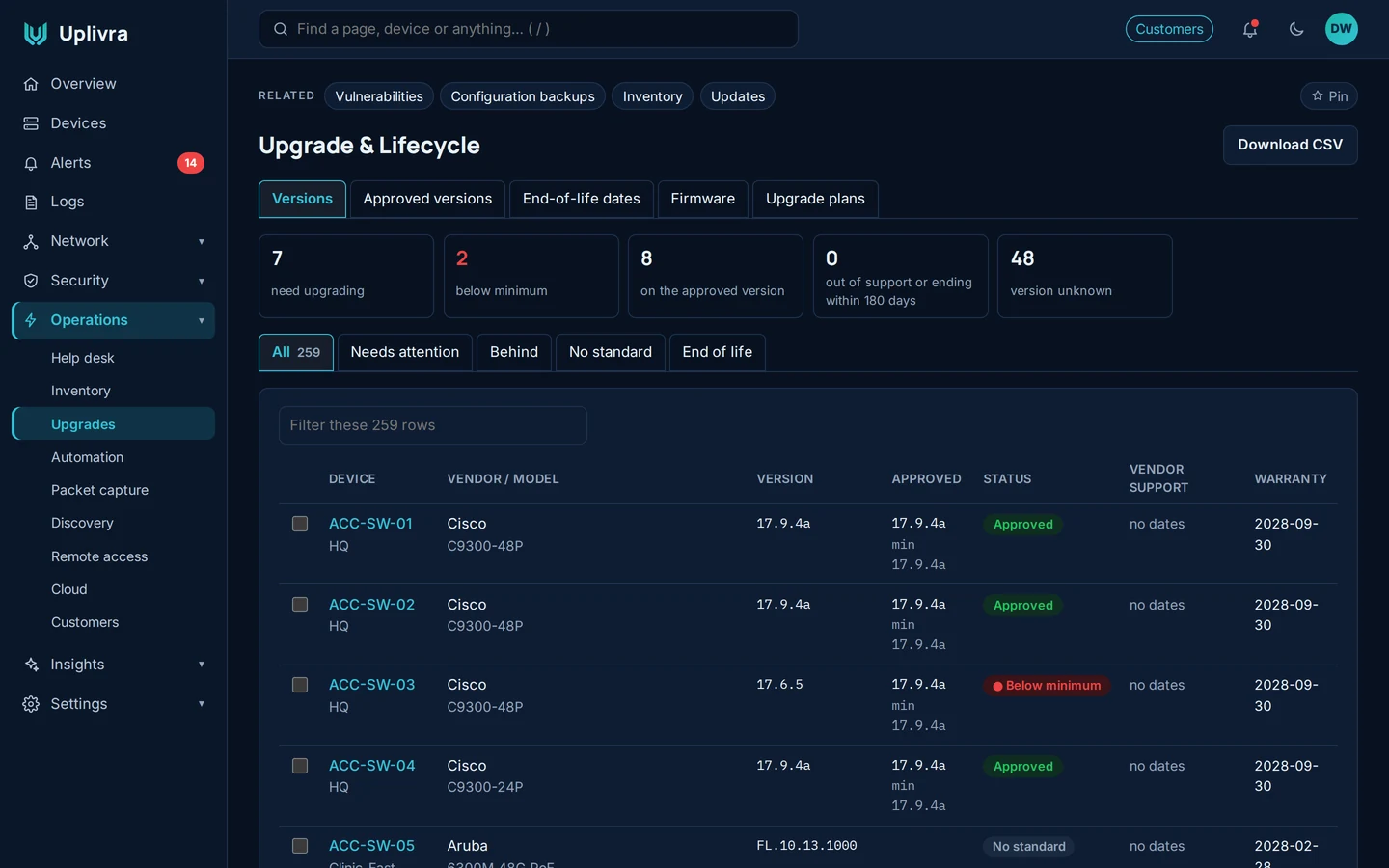
Uplivra reads each device's model and firmware version and compares it with your approved versions. The Lifecycle page shows at a glance which devices need upgrading, which are below the minimum you set, and which are running an approved version.
End-of-life and warranty dates
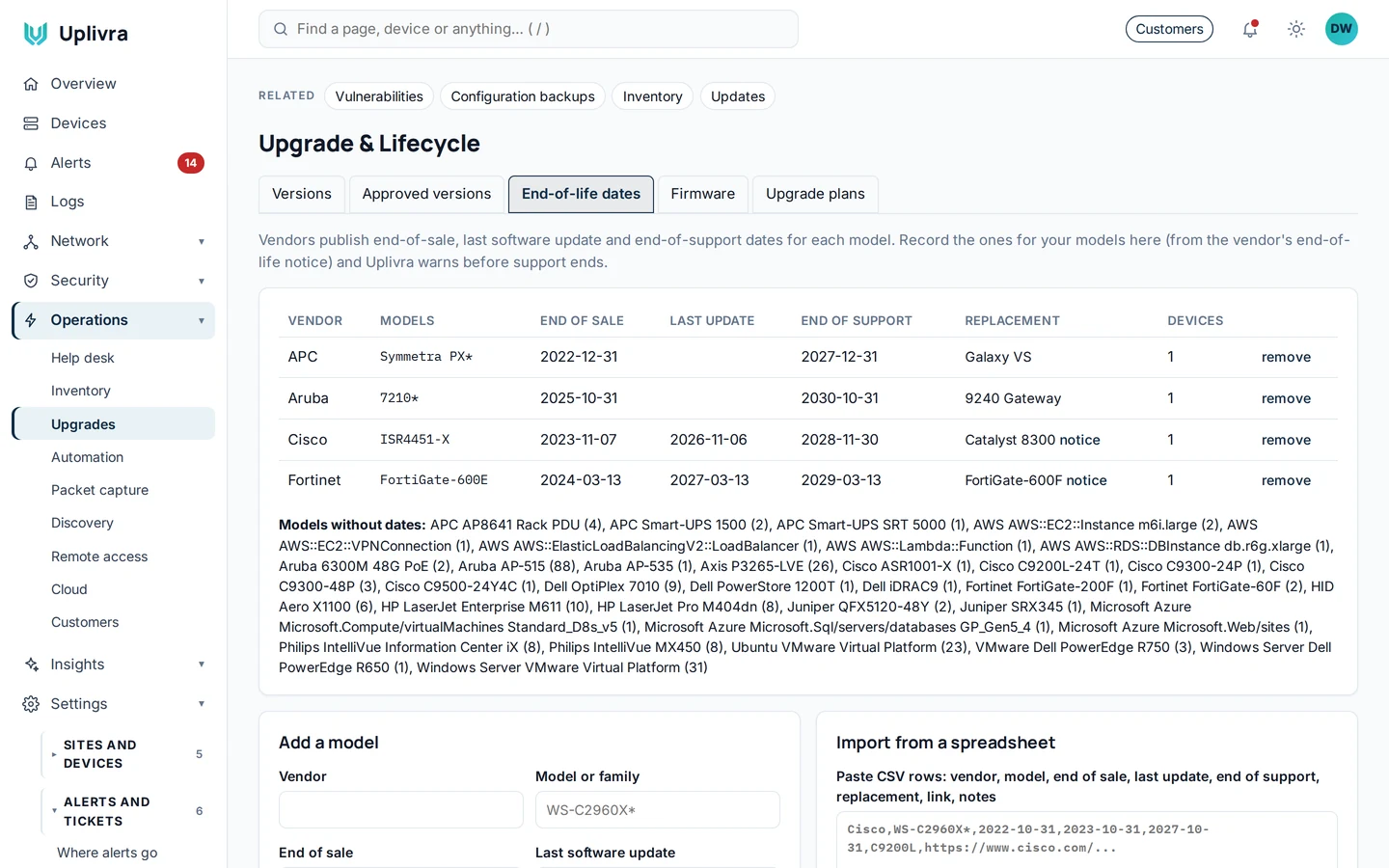
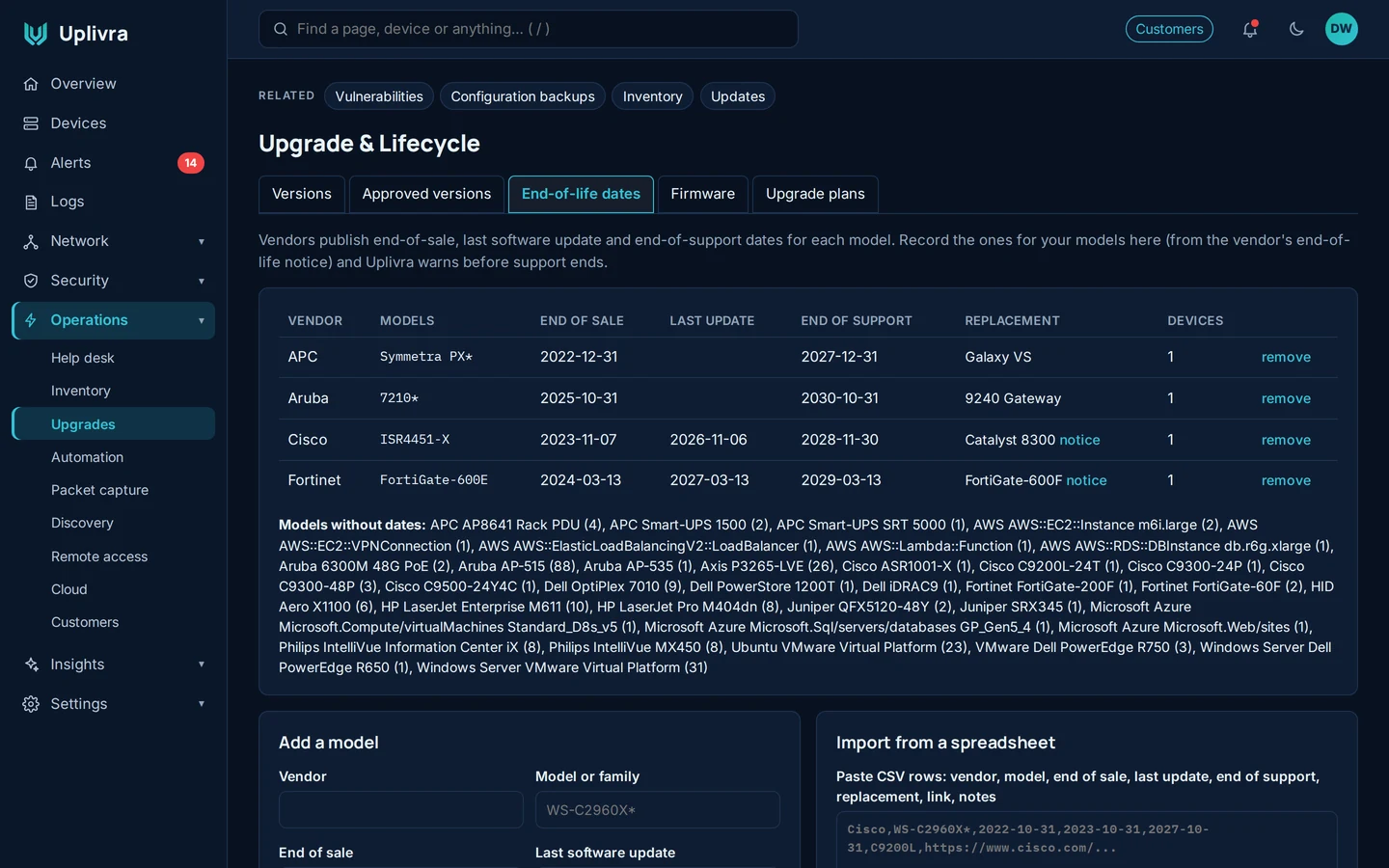
Record end-of-sale, end-of-support and warranty dates per model, and Uplivra shows which devices are out of support or will be within the next year, so replacements go into next year's budget instead of becoming an emergency.
Upgrades with evidence
Keep a firmware repository of the images you've approved. Plan an upgrade, add devices to it, and stage it. Uplivra records the device's state before (version, checks, interfaces, configuration) and after, so you can show the upgrade worked, or see exactly what changed if it didn't. Upgrade plans and reports export for change-management records.
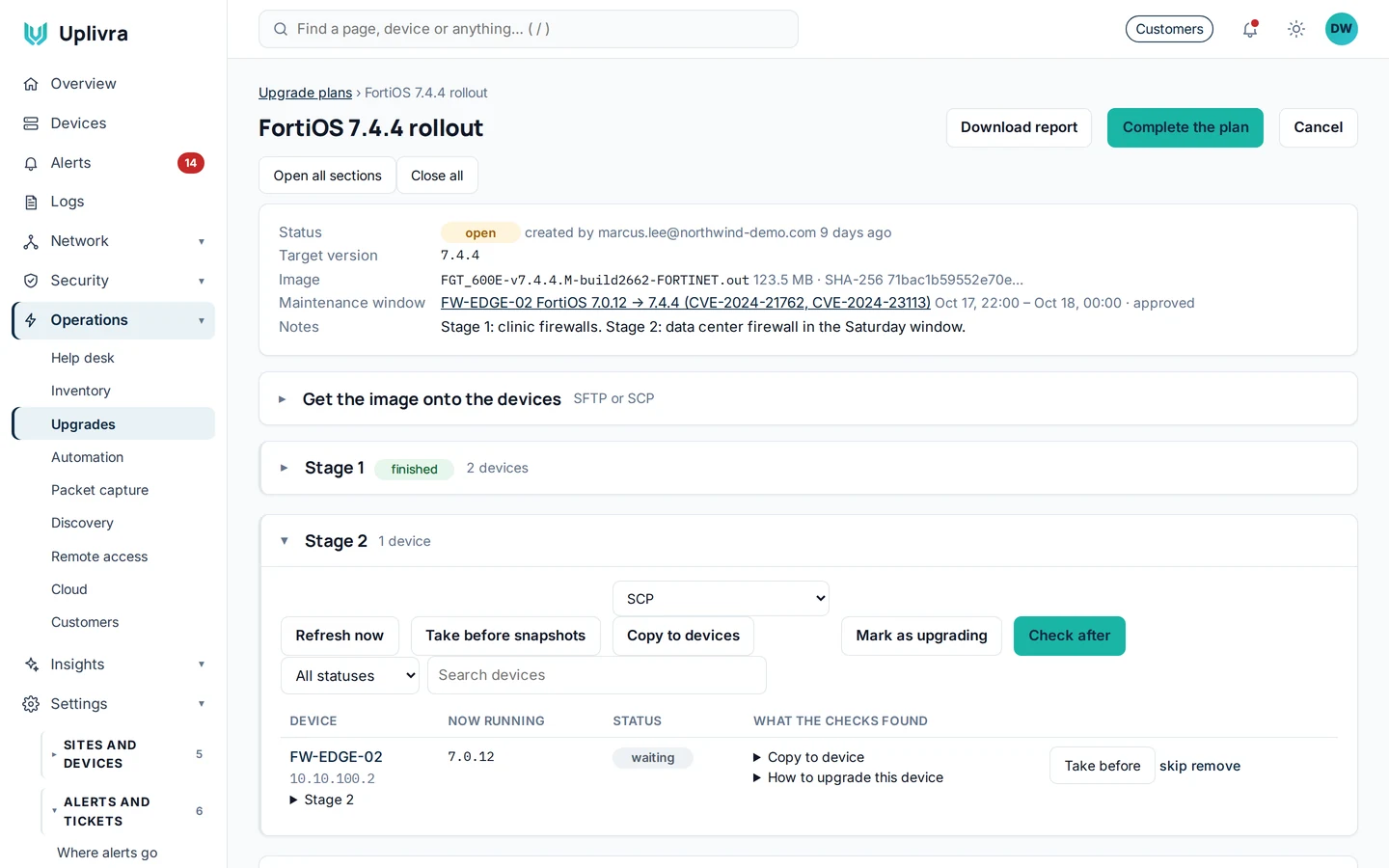
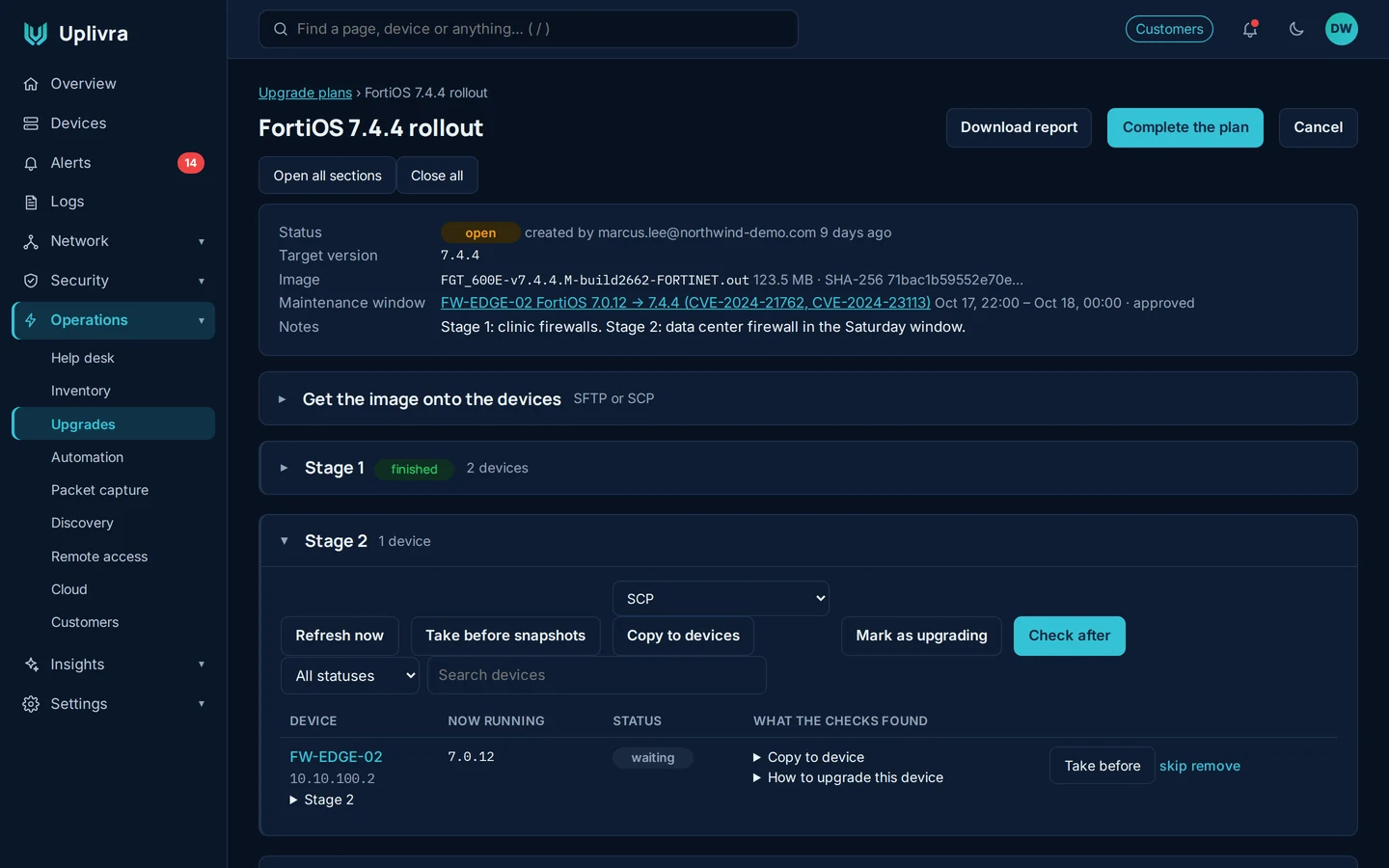
Getting images onto devices: SFTP or SCP only
Firmware images only ever travel over SSH, as SFTP or SCP. Uplivra never uses TFTP, FTP, HTTP or Telnet to move an image or to sign in to a device, so neither the image nor the device's login crosses your network in the clear. There are two ways:
| Way | How it works | You need |
|---|---|---|
| Copy to device (the collector does it) | On an upgrade plan, press Copy to device on a device or a whole stage and pick SCP or SFTP. The collector at the device's site fetches the image from Uplivra over its own encrypted connection, checks its SHA-256, signs in to the device over SSH with the login from the device's configuration backup check, checks the device's SSH host key, and copies the image (for example to flash: or /var/tmp/). The result shows on the plan. | A configuration backup check on the device (it provides the SSH login and records the host key), and the device's SCP or SFTP server turned on (for example ip scp server enable on Cisco IOS). TCP 22 from the collector to the device. |
| Pull from the repository (people or devices copy it) | Press Get SFTP/SCP access on the plan. Uplivra makes a read-only account for that one image, valid 8 hours, and shows the commands. Copy it from your computer (sftp, scp, WinSCP) or from the device's own SCP/SFTP client. The account can't upload, open a shell, or see other files; you can end it early, and every download is in the audit log. | SFTP/SCP access turned on on the server (below), and TCP to that port from the device or your computer. |
If a device's SSH host key changes (it was replaced or re-keyed), the copy stops and shows the new key; confirm it on the device, paste it into Device's new SSH host key and copy again.
You can still download an image to your own computer from Lifecycle › Firmware (signed in, over HTTPS), and copy it on with your own SFTP or SCP client.
A 24-hour HTTPS link, for devices that can only download
Optional, from 26.10.26: some devices can only fetch an image over HTTPS. On Lifecycle › Firmware, open the image, pick one of the server's addresses and click Make a 24-hour HTTPS link. The link:
- is shown once, and works on that address and the server's web port only;
- stops after 24 hours, or when you click Stop;
- is recorded each time it's used (the table shows downloads and the last address);
- works for anyone who has it while it lasts, so give it only to the device;
- needs no new ports: the device connects in to the server on the web interface's port (443 unless you chose another), so allow that from the device's network.
It needs the Make temporary HTTPS download links for firmware images permission and at least one Network Pro device on the license. The device may need to accept the server's certificate, or trust the authority that issued it. Plain HTTP, TFTP and FTP are still never used.
Turning on SFTP/SCP access to the repository
It's off until you turn it on, from 26.10.73 right on the page. On Lifecycle › Firmware, in SFTP/SCP access to the repository, set a port (2022 by default) and click Turn on. The server restarts to apply it and, when the ufw firewall is active, opens that port for you. Turning it off again is one click on the same page. Only the service provider can change it, and every change is in the audit log.
Pick a port other than 22 (the server's own SSH). The repository's host key is shown on the same page; check it the first time you connect. Some older devices can only pull by SCP from port 22; for those, use Copy to device instead.
If your firewall isn't ufw, allow the port you chose yourself (inbound TCP). On a server set up before the system helper existed, or to script it, you can instead set it in the server's config by hand, then open the port and restart:
"firmware_sftp": { "listen": ":2022", "host": "uplivra.yourcompany.com" }ufw allow 2022/tcp
uplivra service restart server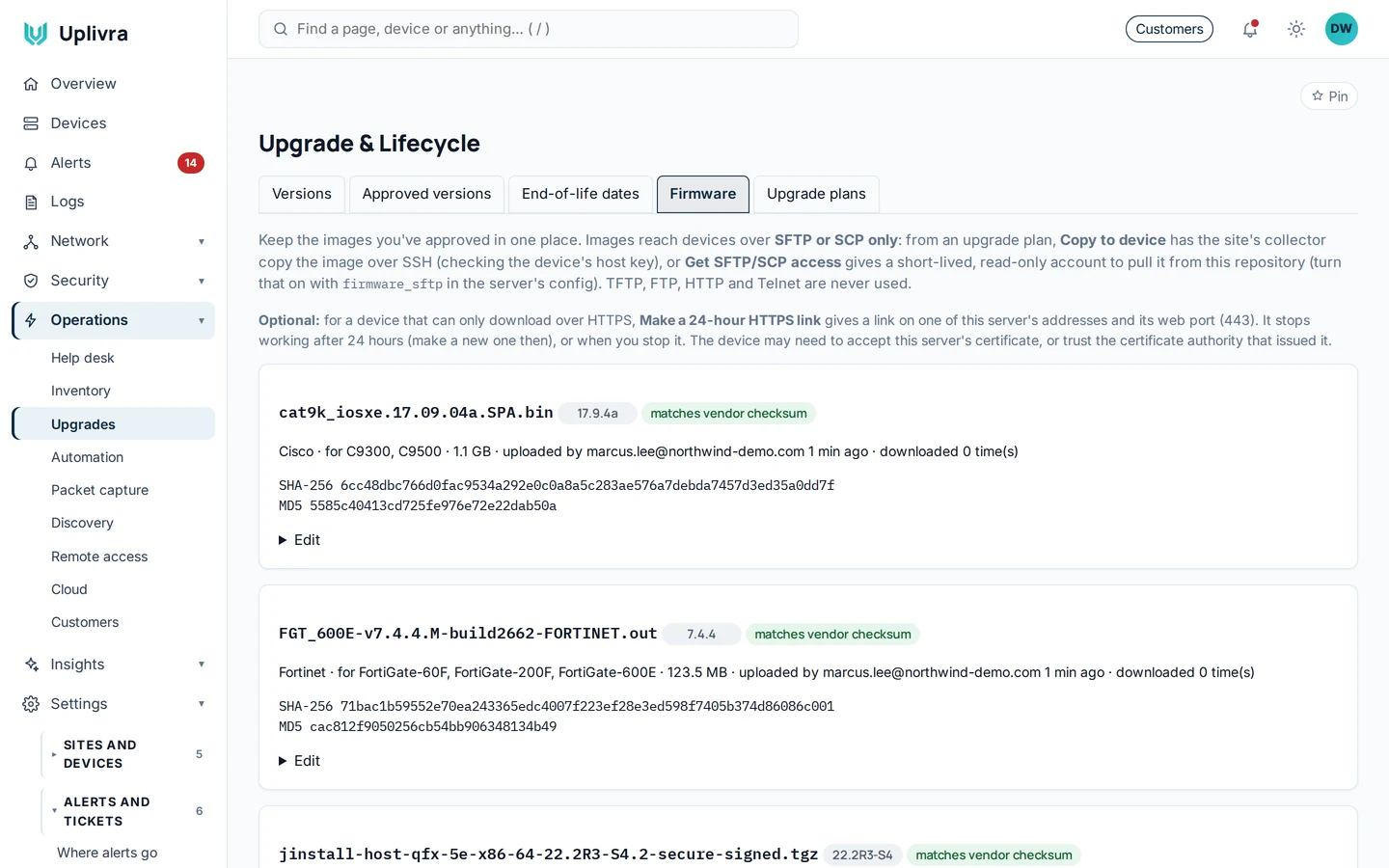
Pricing
$2 per device per month, for the devices you choose. See pricing.
Other modules

Core monitoring
Availability, services, SNMP and websites, with alerts people act on
$1 per device per month after 15 free devices. No monthly minimum; 15% off when paid yearly
Network Pro
Ports, network map and traffic flows on every device
+$2 per device per month
Log Intelligence
Collect, search and keep every log, encrypted and tamper-evident
Included with Network Pro
Compliance & Evidence
Controls tested every day, evidence ready for the audit
$5 per device per month
Packet Capture
Record all the time, pull the moment it went wrong
Included with Network Pro
ITSM Integration
Changes, approvals and incidents in the ticketing system you already use
$1 per device per month (price under review)
Vulnerability Scanning
Know which boxes are exposed, and who owns the fix
$5 per device per month
Access Control
One place for every admin login, every command, and temporary access that ends by itself
$5 per network device per month
Native Service Desk
A help desk linked to your devices and alerts
$5 per help desk agent per month
DNS Security
Bad sites stopped before anyone connects, with a reason for every block
$1 per protected device per month (price under review)
Automation & Remediation
Runbooks for the routine fixes, with approval when you want it
$1 per device per month (price under review)
MSP multi-tenant
Every customer in one console, each one in charge of your access
$49 per month plus $5 per customer (price under review)
PCI CDE Monitoring
Monitoring built for the cardholder data environment
$4 per card-environment system per month, $49 minimum (price under review)