
Home › Install guides › Intelligence notices and notifications
Install guide · IT teams and MSPsIntelligence notices and notifications
Turn on the ready-made messages Uplivra Intelligence writes (duplex mismatch, rogue DHCP, disks, links, sign-in attempts and more), pick where each goes, list your trusted sources, and add the rogue DHCP check.
Uplivra Technologies LLC · Guide for Uplivra 26.10 · Updated 28 September 2026 · Latest version: https://uplivra.com/guides/intelligence-notifications.html
What you need
- Uplivra 26.10.25 or later (the search, filters and wizards: 26.10.26).
- Somewhere to send messages: Settings › Where alerts go (email, Teams, Slack or a webhook).
- For duplex, port and link notices: an SNMP check on the switches and routers, with performance on (the default).
- For sign-in attempts and probes: logs from the devices (Network Pro or Log Intelligence), sent to Uplivra by syslog.
- Optional: the rogue DHCP check, below.
Disks, duplex, rogue DHCP and the weekly summary are free. Everything else needs Uplivra Intelligence, which every new installation gets free for its first 6 months.
Turn on templates
- Open Settings › Intelligence notifications. The list shows every template with whether it's on, when it sends and where. Search, or narrow it with the drop-downs (on or off, sent when something is found or as a digest, who it's for, free or Intelligence).
- Click a template to change it. A short wizard opens over the page: tick Send, pick one or more places to send it, and choose the minimum importance: For your information (includes forecasts like "will be full in 9 days"), Attention, or Act now only. For digests, pick the hour (and the day, for the weekly summary).
- Click Save, then Preview to see it as it would arrive, and Send a test to check it reaches you.
Add a notification opens the same wizard with one more step first: search the ready-made messages (duplex, disk, printer, security…), pick one, then choose where it goes and when.
A template sends only findings that are new, or got worse, since it last sent, so turning one on doesn't send everything already open. The Notices page (in the menu under Tools) shows everything open now and what cleared in the last week.
Trusted sources
Sign-in failures and probes from trusted addresses are never reported. Always trusted, automatically:
- every Uplivra collector's own addresses, and the address it connects to the server from;
- the Uplivra server itself.
Optional: add your own under Settings › Intelligence notifications › Trusted sources: vulnerability scanners, jump hosts, admin networks. One per line, as an address (192.0.2.15) or a network (10.20.0.0/16). A list that would trust everything (0.0.0.0/0) is refused.
By default, repeated sign-in failures and probes from untrusted sources also open an alert, so they reach your usual alert channels, on-call and tickets like any other alert, and close when it stops. Untick the box to only get them through the templates.
| Finding | When |
|---|---|
| Sign-in attempts | 20 or more failed sign-ins (SSH, Telnet, RDP, web admin, VPN) from one untrusted source in an hour. Urgent at 100, or at any count over Telnet |
| Password spraying | 60 or more failures to one device from 5 or more untrusted sources in an hour |
| Probes | 100 or more connections a firewall refused from one untrusted source in an hour |
| Port scan | An untrusted source refused on 10 or more different ports in an hour |
Add the rogue DHCP check (optional)
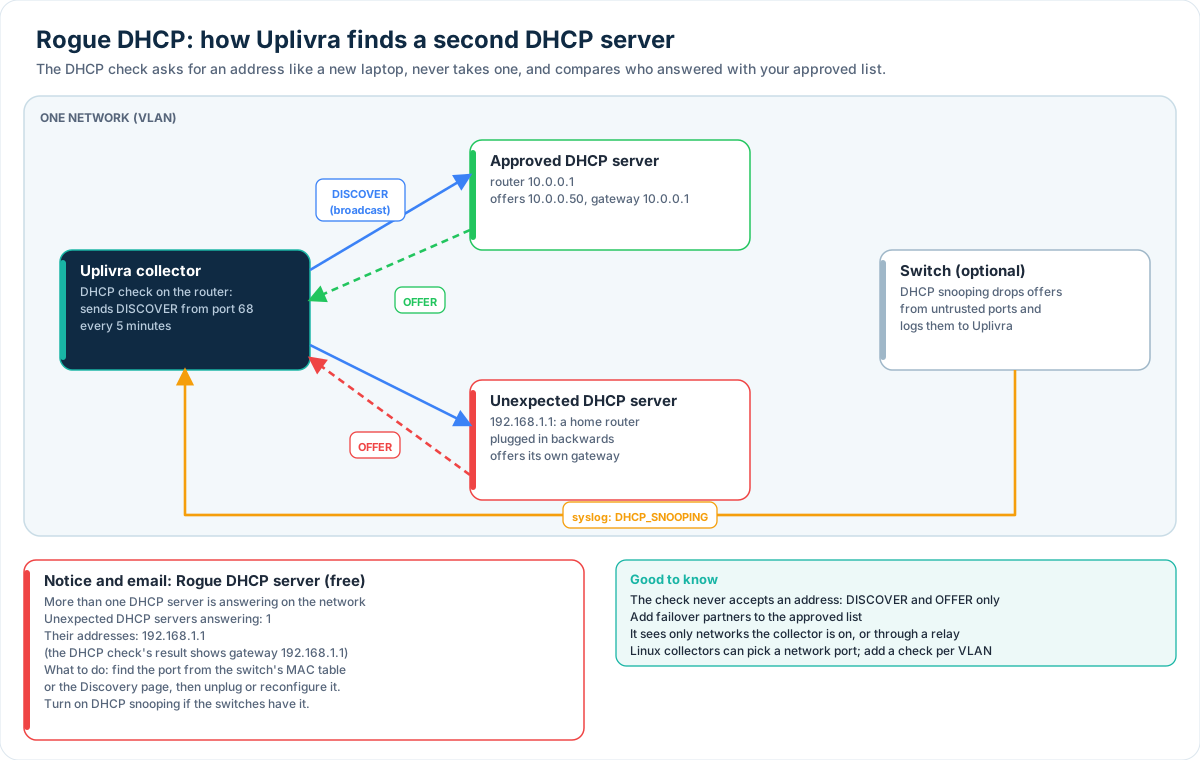
Ports: the check broadcasts on UDP 67 from the collector and hears answers on UDP 68, which firewalls allow as DHCP replies. Nothing to open. Uplivra's own DHCP server never answers it, so it only reports other servers.
- Open the device that is your approved DHCP server (usually the router or firewall, or a Windows server).
- Add a check › DHCP server. In Other approved DHCP servers, list any failover partner.
- Optional: on a Linux collector with several network ports, enter the port to ask on (for example
eth1).
Every 5 minutes the collector asks for an address the way a new laptop would, lists every server that answers, and stops there: it never accepts an address, so no lease is used. An answer from a server that isn't approved turns the check to warning and raises the Rogue DHCP server notice with its address. If your switches do DHCP snooping, their log messages about blocked DHCP replies raise the same notice with the port.
The collector only sees DHCP on networks it's plugged into (or through a DHCP relay). To watch several VLANs, use a collector with a port on each, or one collector per site. The probe wizard and CSV import accept dhcp as a probe.
Duplex mismatch
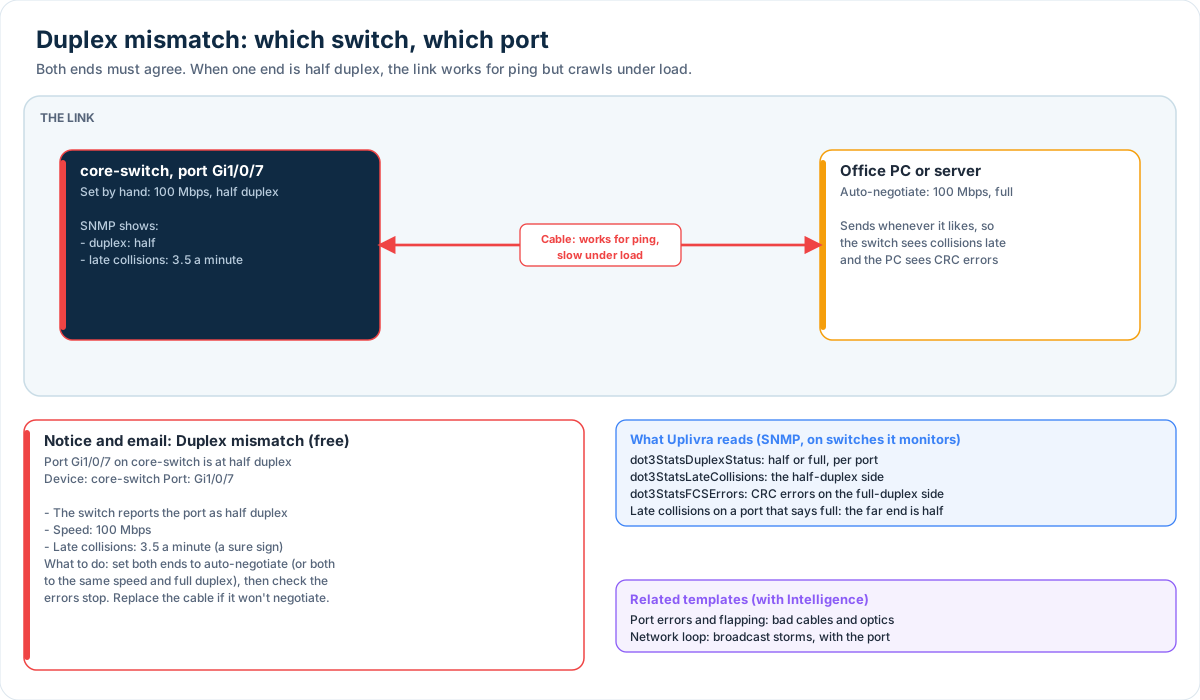
Nothing to set up beyond the SNMP check on the switch. Uplivra reads each port's duplex and its late-collision and CRC error counters. A port at half duplex, or late collisions on a port that says full duplex, raises the notice with the switch and port.
New devices on the network
The New devices on the network template (also part of Security watch) sends, at most once a day, the network adapters Uplivra saw for the first time that aren't among your devices: each one's maker, address, name and switch port. Phones' private (random) addresses are left out, because they change for every network. See MAC addresses and makers for where they come from.
You can also ask Intelligence: "What devices are on my network?", "Any Hikvision devices on the network?" or "Which new devices appeared today?"
Context on alerts and tickets
Alert messages and tickets get an Uplivra Intelligence section automatically: the likely cause (free) and, with Intelligence, what else happened at the time, log lines, earlier notices and what to check first. Webhooks get the same under context; see Alert webhooks.
Who can change this
Two permissions, under Settings › People and access:
- See Intelligence notices: Administrators, Operators, NOC engineers and Viewers.
- Choose Intelligence notification templates: Administrators only, by default.