Home › Install guides › Vulnerability scanning
Install guide · Vulnerability ScanningVulnerability scanning
How Uplivra matches your devices against published CVEs, how to choose the devices your license covers, how ownership groups work, and what to do with a finding.
Uplivra Technologies LLC · Guide for Uplivra 26.10 · Updated 28 September 2026 · Latest version: https://uplivra.com/guides/vulnerability-scanning.html
How the feed works
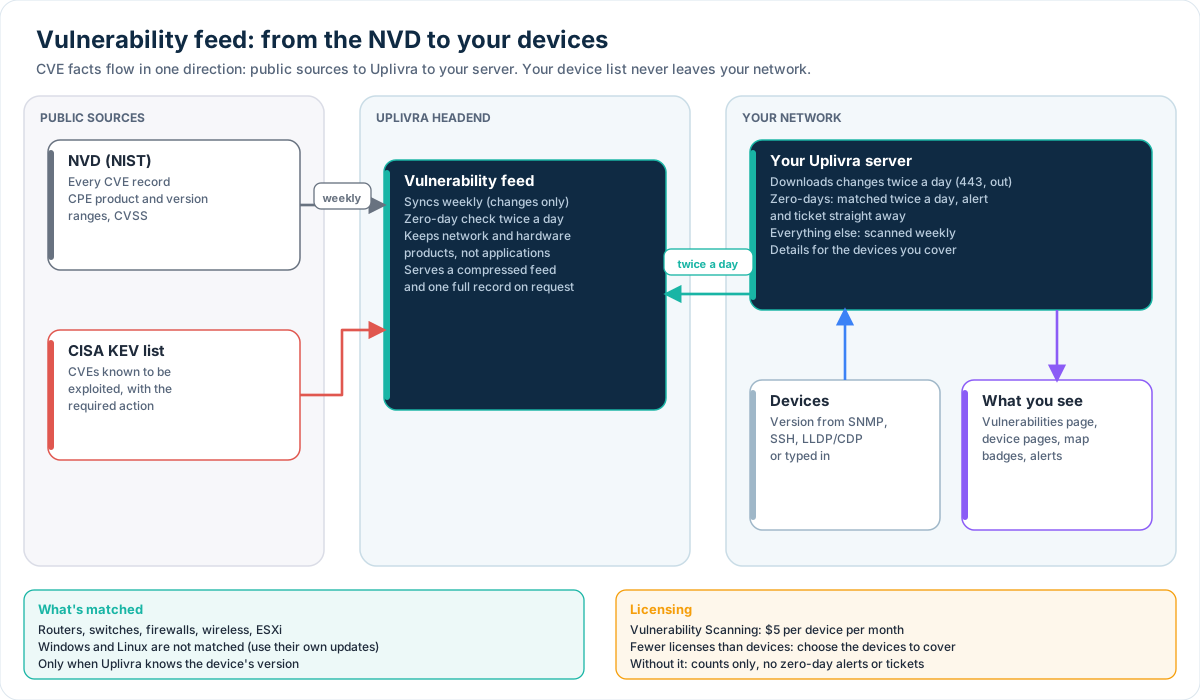
- Every week, Uplivra's headend pulls new and changed CVE records from the NVD, and CISA's Known Exploited Vulnerabilities (KEV) list.
- It keeps only operating system and hardware products (not applications), a summary of up to 600 characters, the severity, and the affected version ranges.
- Twice a day, Uplivra's headend checks for zero-days (below), for every customer.
- Twice a day, your Uplivra server downloads the changes over HTTPS 443. It sends nothing about your network, only a request for the feed.
- Every week (or daily, under Vulnerabilities › Settings), your server matches each device's version against the whole feed. Zero-days are matched twice a day, and a full scan also runs right after the feed brings new records.
You can run either step by hand: Vulnerabilities › Update the feed and Scan now.
What's matched
Uplivra needs to know a device's operating system and version. It learns them from SNMP (sysDescr), SSH version checks, LLDP/CDP neighbors, or the version you type on the device's edit page.
| Vendor | Operating systems |
|---|---|
| Cisco | IOS, IOS-XE, NX-OS, ASA, IOS XR |
| Juniper | Junos |
| HPE Aruba | ArubaOS, ArubaOS-CX, ArubaOS-Switch |
| Fortinet | FortiOS |
| Palo Alto Networks | PAN-OS |
| MikroTik | RouterOS |
| SonicWall | SonicOS |
| Netgate / OPNsense | pfSense, OPNsense |
| Ubiquiti | EdgeOS |
| Ruckus / Extreme | FastIron, EXOS |
| VMware | ESXi |
Not matched: Windows and Linux servers and desktops. Their own update tools track patches far better than a version string can. CVEs that list "every version" are skipped, since they'd flag every device.
A match is possible, not proven: a device may have the vulnerable feature turned off. Mark those Not affected (false positive) with a note.
Choose the devices to cover
The license is per device. If it covers all the devices you monitor, there's nothing to choose. If not, open Vulnerabilities › Devices to scan and tick the devices you want covered, up to your license count. Start with internet-facing firewalls and VPN gateways.
Every device still shows a count of possible vulnerabilities (device page, network map, discovery, and the Vulnerabilities page). The CVE numbers and the actions are only for covered devices.
Ownership groups
Under Settings › Ownership groups, Uplivra starts you with these groups, checked in order:
Security, Network, Wireless, Virtualization, Storage and backup, Windows systems, Linux and Unix, Voice and video, Printing, Cameras and physical security, Power and facilities, IoT and OT, End-user devices, Cloud, Other servers.
A group's rules can match device types, vendors, keywords (in the name, description or sysDescr) and a regular expression. When a group has more than one kind of rule, all of them must match. The first group that matches wins; lower Order numbers are checked first. Apply now re-sorts every device.
To pin a device to a group (or to none), pick it on the device's edit page. Pinned devices are never moved by the rules.
Acting on a finding
Open a CVE from the Vulnerabilities page, a device page, or a badge on the network map.
- Open on the NVD / CVE.org go straight to the source.
- Get the full record fetches references, the CVSS vector, the weakness (CWE) and the vendor's advisory through Uplivra. It's kept for a week.
- Accept the risk needs a reason, and records who decided. Reopen undoes it.
- Raise an alert creates an alert per device, which your ticketing rules pick up.
- Open a help desk ticket (Service Desk) and Plan the upgrade (Upgrade & Lifecycle) appear when those modules are licensed.
- Ask Uplivra Intelligence (Intelligence module) has the AI model on your own network suggest a workaround or the version to move to. It never takes action by itself.
A finding resolves by itself when the device reports a version that isn't affected.
Zero-days
A vulnerability is a zero-day in Uplivra for 30 days after either:
- CISA adds it to its Known Exploited Vulnerabilities list: attackers are using it now; or
- it's published as critical or high with no fixed version: every affected range is open-ended.
CISA often lists a zero-day before the NVD publishes which versions are affected. Until it does, Uplivra flags every device running that product and marks the finding versions pending; the next check narrows it down.
With Vulnerability Scanning, each zero-day on a covered device:
- shows at the top of the Vulnerabilities page, on the device page and as a 0-day badge on the network map;
- raises one high-priority alert (listing every affected device), which goes to your alert channels;
- opens a ticket straight away, in the ticketing system chosen under Settings › Ticketing (ServiceNow, Jira, Freshservice or Zendesk), or else in the Uplivra Service Desk at priority 1, even if tickets for other alerts are off.
The alert (and its ticket) closes when no covered device has the finding open: upgrade the devices, or record a workaround with Accept the risk. Choose high-priority alert only or no alert under Vulnerabilities › Settings.
Without the module, zero-days are counted with everything else, with no alerts or tickets.
Alerts
Zero-days have their own alerts (above). Otherwise, by default a new finding that's on CISA's known-exploited list, or critical, raises one alert per device. Include high severity under Vulnerabilities › Settings.
Access
Two permissions control this: vuln.view (see findings) and vuln.manage (decide, raise alerts, change coverage and settings). Operators get both; NOC staff get view.
Attribution
This product uses data from the NVD API but is not endorsed or certified by the NVD. Known-exploited data comes from CISA's KEV catalog.