

Home › Install guides › Support tickets
Install guide · EveryoneSupport tickets
Open a ticket from the customer portal in five short steps. Your details and collectors are filled in, and Uplivra can attach its own recent log lines about the problem.
Uplivra Technologies LLC · Guide for Uplivra 26.10 · Updated 28 September 2026 · Latest version: https://uplivra.com/guides/support-tickets.html
What you need
- An account in the customer portal, signed in, with your email address confirmed.
- Optional, for logs: your Uplivra server on 26.10.26 or later, connected to Uplivra (it reports its health every 5 minutes; that's on unless you turned it off).
Open a ticket
In the portal, click Support › Open a ticket (or Open a support ticket in the help box). The wizard opens over the page:
- The problem: what it's about (a collector offline, restarts, checks, alerts, log collection, a module, billing, a question…), how bad it is, a subject, what's happening and when it started.
- Where: the license, and the collectors that have the problem. Your collectors are listed from what your server last reported, with whether each is online and its last problem.
- Logs: whether to attach Uplivra's own logs (see below).
- Contact: who we talk to. It's filled in from your account; change it if someone else is looking after it.
- Check and send.
The ticket goes to support@uplivra.com and a copy goes to the contact. We answer within one business day. Replies arrive by email and on the ticket under Support; add to the ticket there. Replying to a closed ticket opens it again.
What the logs contain
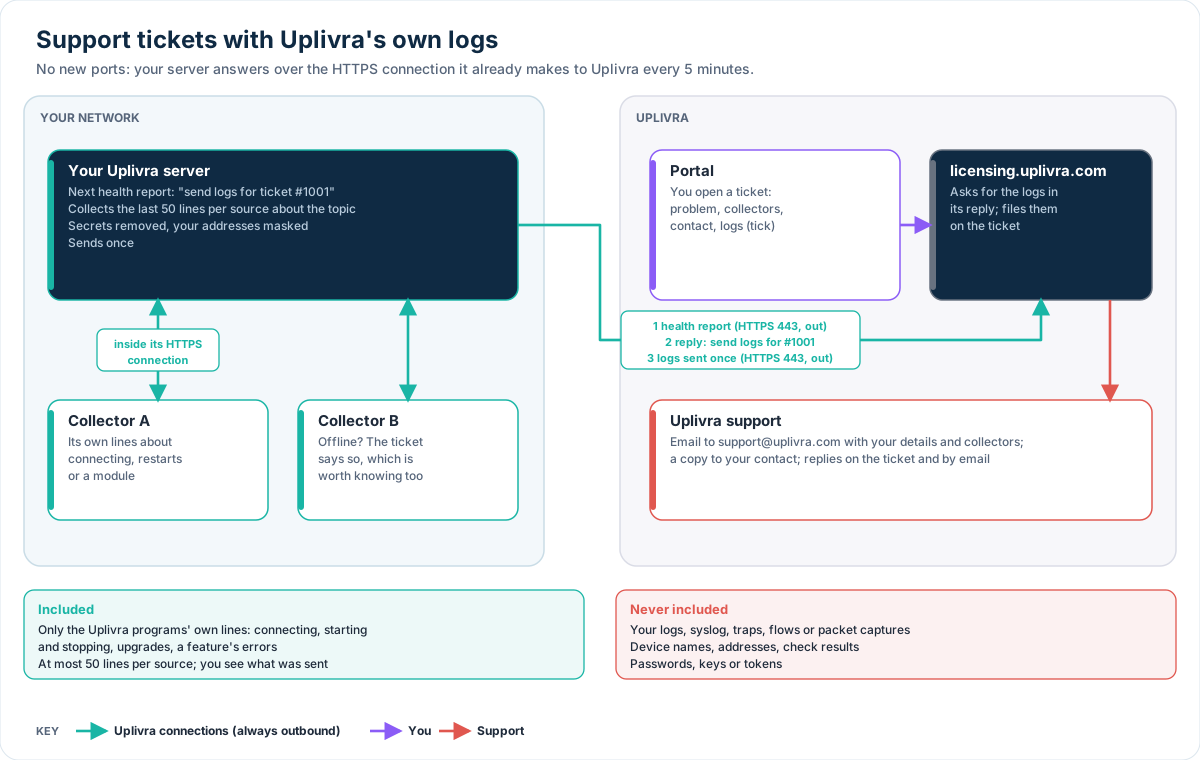
When you tick Attach Uplivra's own logs, Uplivra asks your server once, when the ticket is opened, for the last 50 lines of its own operating log about the ticket's topic, from the server and from each collector you picked (or all of them). For a connection problem that's the connecting lines; for a restart, the start-up and shutdown lines; for a module, that module's lines. Every error counts.
- Included: only what the Uplivra programs themselves did: connecting, starting and stopping, upgrading, and a feature's own messages. Passwords, keys and tokens are removed, and your network's IP and email addresses are masked.
- Never included: your logs, syslog messages, traps, traffic flows, packet captures, device names, device addresses or check results.
- The logs arrive with the server's next health report, usually within 5 minutes, and you see exactly what was sent on the ticket.
- No new ports: your server asks its collectors inside their usual HTTPS connection, and sends the lines out on TCP 443 to licensing.uplivra.com, the same connection its health reports use.
If your server can't be reached, the ticket says so. That's worth knowing too: tell us what you see on the collector's screen.