

Home › Install guides › New networks, VLANs and Uplivra's DHCP server
Install guide · IT teams and MSPsNew networks, VLANs and Uplivra's DHCP server
Add a network with its VLAN, DHCP and a device scan in one go, and let a collector hand out addresses safely, with reservations, options, network boot and a year of lease history.
Uplivra Technologies LLC · Guide for Uplivra 26.10 · Updated 28 September 2026 · Latest version: https://uplivra.com/guides/dhcp-and-ipam.html
What you need
- Uplivra 26.10.26 or later, with Network Pro.
- For Uplivra's DHCP server: a Linux collector (the virtual appliance, or a Linux install) with a port in the network, and the Turn on and change Uplivra's DHCP server permission (administrators have it).
- Optional: a DHCP relay (IP helper) on your router, pointed at the collector, to serve networks the collector isn't in.
Set up a network
Network › IP addresses › Set up a network opens a short wizard:
- Network: the site, a name, the network (
192.168.30.0/24) and its gateway. Uplivra fills in the gateway (.1) and a DHCP range as you type. - VLAN: Uplivra suggests the next free VLAN ID at that site (round numbers first: 10, 20, 30). Set the same VLAN on your switch ports and router; Uplivra only keeps the list.
- DHCP: nobody, the router or another server (Uplivra records the range and warns when it's nearly full), or Uplivra's DHCP server on a collector.
- Find devices: scan the network now, and again every 6 hours, day or week. Choose what happens to new devices: list them for you to choose, add them to the inventory, or add and monitor them (ping, SNMP if a saved login answers, and HTTPS). Added devices are tagged
auto-added, and ignored hosts are never added.
Everything the wizard makes can be changed later on the IP addresses, VLANs, DHCP server and Discovery pages. Any discovery scan can add what it finds: pick it under New devices it finds.
VLANs
Network › VLANs lists the VLAN IDs in use, for one site or every site, with the subnets that use each. The Add a VLAN form suggests the next free ID. Subnets that name a VLAN that isn't listed are pointed out.
Uplivra's DHCP server
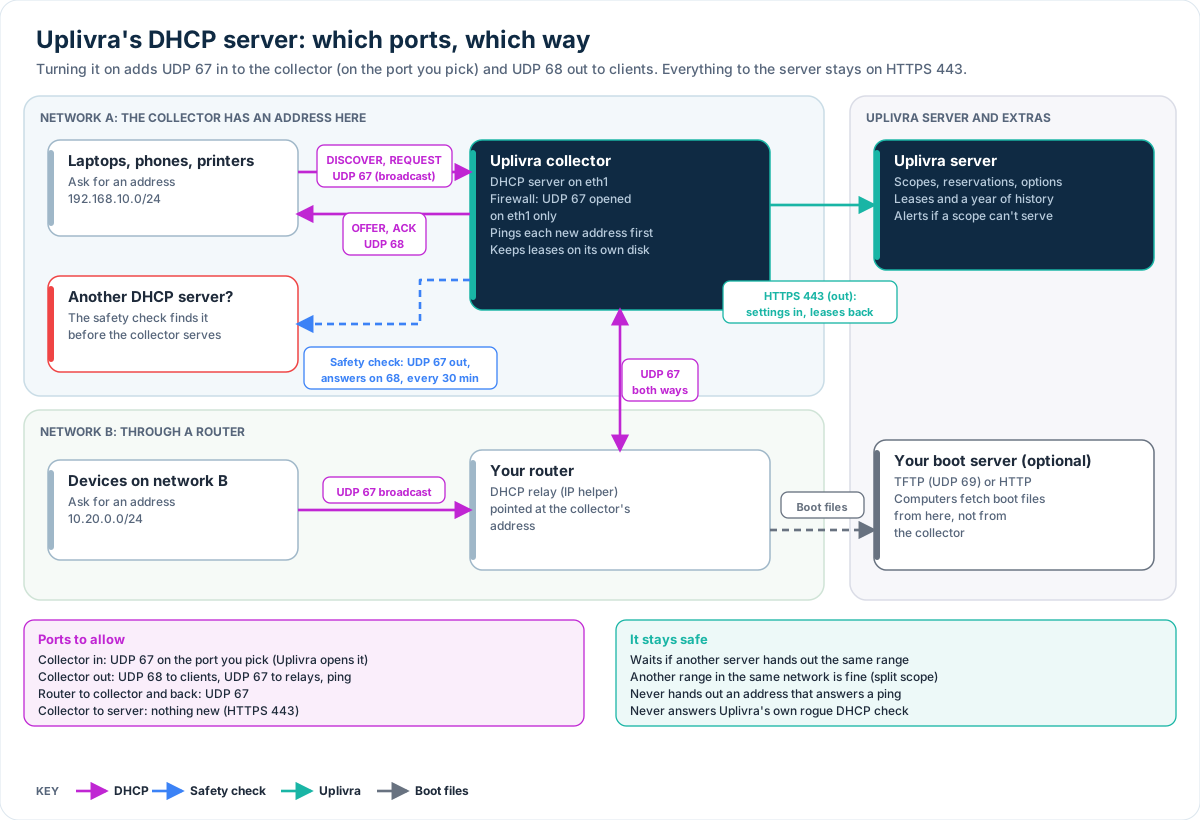
A collector can hand out addresses in place of a router or a Windows server. Open Network › DHCP server › Add a DHCP scope (or Serve DHCP here on a subnet's page). The wizard has six steps:
- Where: a name, the network, and the collector port that answers. The collector needs an address in that network on the port, or a relay pointed at it.
- Addresses: the range to hand out, gateway, DNS servers, domain, time servers and the lease time (1 hour to 7 days; a day is a good default).
- Reservations: one per line:
MAC address, IP address, name. Reservations on the IP addresses page with a MAC address are added too. - Options: most networks need none. Pick a listed option (Wi-Fi controllers, phones' TFTP servers, WPAD, time zone, MTU…) or give any code from 1 to 254 with its type: text, one or more addresses, a number, yes/no, or raw hex.
- Network boot: the boot (TFTP) server and files for BIOS and UEFI computers, a UEFI HTTP boot address, and an iPXE script. Uplivra picks the right file from what the computer says it is, and computers already running iPXE get the script, so they don't loop.
- Safety: see below.
The collector picks the scope up within a minute. On the appliance, Uplivra opens UDP port 67 in the collector's firewall for that port.
Ports it adds
Turning on a scope opens new ports on that collector. Nothing changes until you do.
| Direction | Port | Between | Why |
|---|---|---|---|
| In to the collector | UDP 67 | Devices on the network (broadcast), and your router's DHCP relay | DHCP requests |
| Out from the collector | UDP 68 | Devices on the network (broadcast) | Offers and acknowledgements |
| Out from the collector | UDP 67 | Your router's DHCP relay | Answers to relayed requests |
| Out from the collector | UDP 67 broadcast (answers on 68) | The local network | The check for other DHCP servers, before serving and every 30 minutes |
| Out from the collector | ICMP (ping) | The address about to be handed out | Skipping addresses already in use |
| Out from the collector | TCP 443 | Your Uplivra server | Settings, leases and history (the connection it already has) |
- The collector's own firewall: on appliances and Linux installs with ufw, Uplivra opens UDP 67 only on the network port the scope uses, and closes it when the scope is removed. If the collector's manage system setting is off, open it yourself:
sudo ufw allow in on eth1 to any port 67 proto udp. - Firewalls between your router and the collector (for relayed networks): allow UDP 67 both ways between the router's address in that network and the collector.
- Network boot: computers fetch boot files from your boot server (TFTP UDP 69 or HTTP), not from the collector.
The full list for every kind of computer is in Ports and firewall rules.
How it stays safe
- Another DHCP server first. Before serving, the collector asks the network which DHCP servers answer. If one offers addresses from the same range, the scope waits and an alert opens. Another server handing out a different range of the same network is fine: that's a split scope. The check runs again every 30 minutes; a new server in the range while serving raises a warning but doesn't stop DHCP.
- Ping before offering. Each address that hasn't been used before is pinged first; if something answers, it's held back for an hour and the next one is offered. Turn this off for networks that block ping.
- Declines. When a device reports an address is already in use, it's held back for an hour.
- Uplivra's own rogue DHCP check is never answered by Uplivra's DHCP server, so the check keeps reporting other servers only.
- Licenses. If the license lapses, scopes keep running (switching DHCP off would take the network down); you just can't change them.
Leases and history
Network › DHCP server shows each scope's state and how full it is, and every lease: address, MAC, host name, the kind of device, and until when. Filter by scope, state or device, or search. Leases count as addresses in use on the IP addresses page, so "nearly full" alerts include them.
The kind of device is a guess from the DHCP fingerprint (the options the device asks for, and its vendor class): Windows, Apple, Android, Linux, printers, IP phones, network boot and more. Hover over ⓘ to see the fingerprint itself.
Lease history keeps a year of events: a device got an address, changed address, gave it back, its lease ran out, or an address was found in use. Search by address, MAC, name or device.
Troubleshooting
| What you see | What to do |
|---|---|
| Not serving: another DHCP server hands out addresses in this range | Turn the other server's scope off, give each server its own part of the network, or tick Serve even if another DHCP server hands out addresses from this range (not recommended) |
| Waiting for the collector | It's offline, or older than 26.10.26. Upgrade it |
| Problem: can't listen for DHCP | Another DHCP server program runs on the collector (dnsmasq, isc-dhcp-server). Stop it |
| Devices get no address through a relay | Point the relay (IP helper) at the collector's address, and pick the port facing the relay in step 1 |
| The collector has no address in the network | Add one on that port under the collector's Network interfaces, or use a relay |