
Home › Install guides › People, access and sign-in
Install guide · Administrators, MSPs and auditorsPeople, access and sign-in
Give each person exactly the access they need with access profiles, sign in with Active Directory or LDAP (several directories, picked from a tree), let MSP staff in only as far as each customer allows, and show auditors encryption evidence on demand.
Uplivra Technologies LLC · Guide for Uplivra 26.10 · Updated 28 September 2026 · Latest version: https://uplivra.com/guides/access-control.html
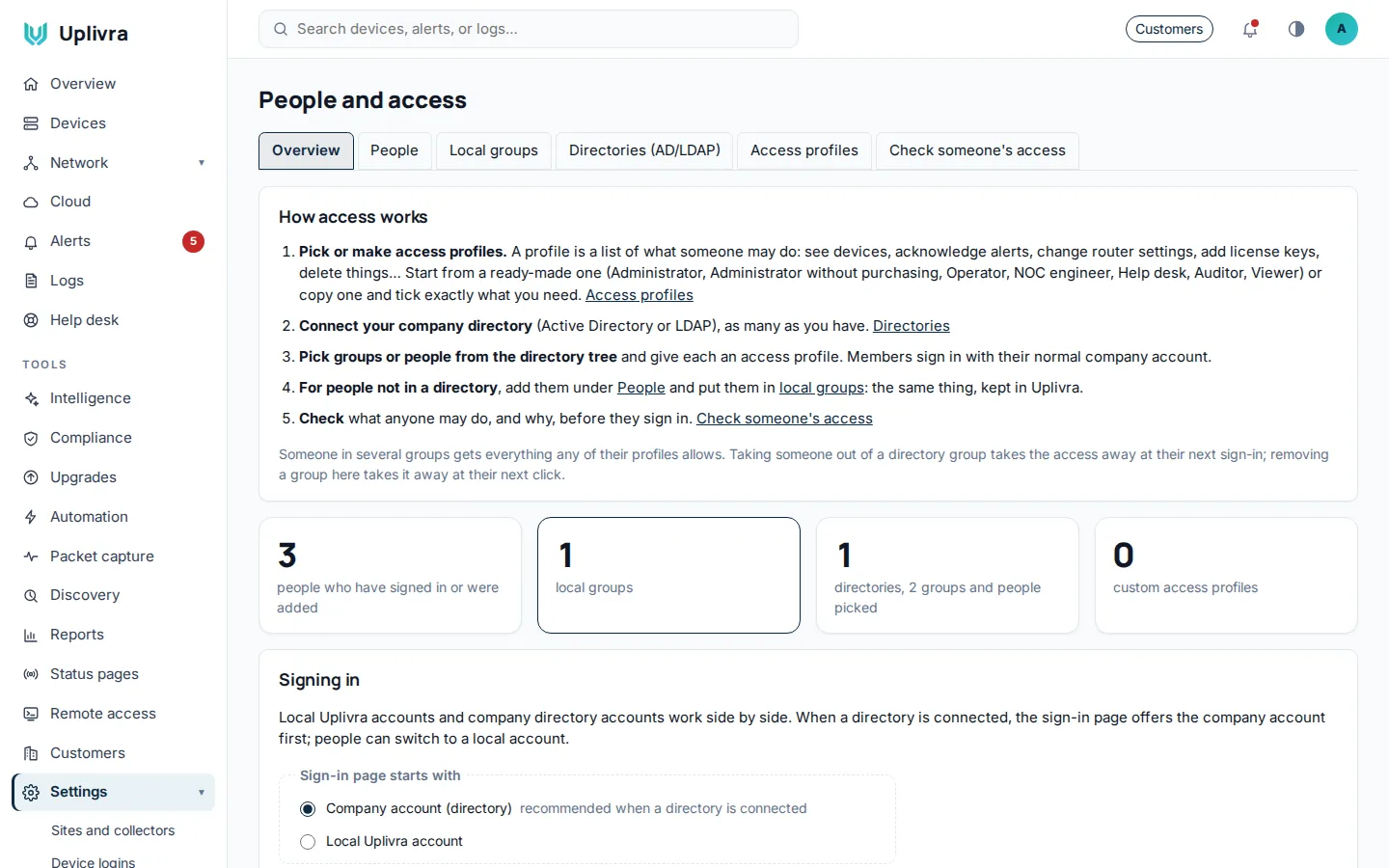
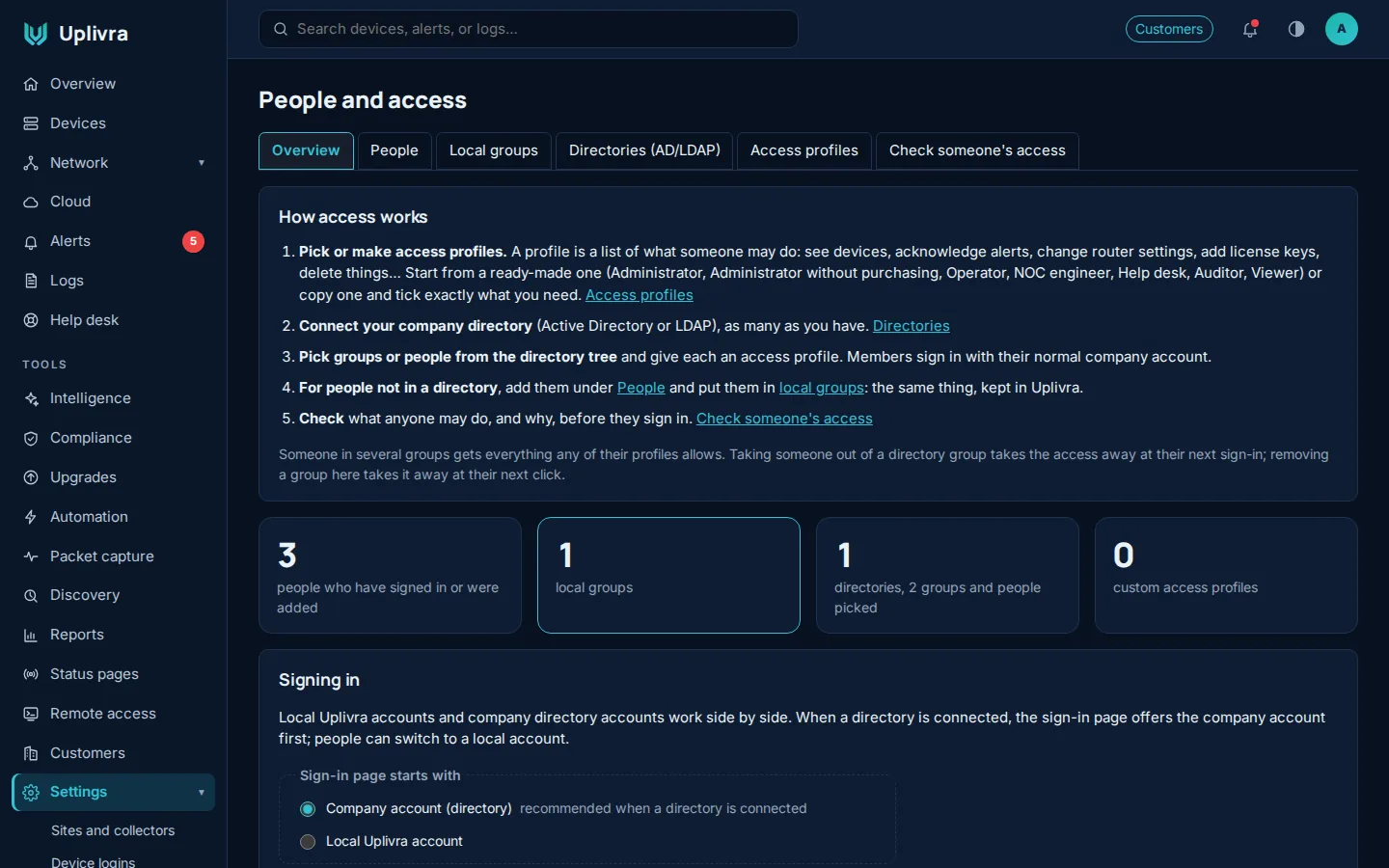
How access works
Everything is under Settings › People and access. Each person's access is the sum of:
- Their own access profile (people added by hand). People who sign in from a directory start with none.
- Local groups they're in.
- Directory groups or people you picked, each with a profile.
Someone in several groups gets everything any of their profiles allows. Take someone out of a directory group and the access goes at their next sign-in.
Access profiles
A profile is a list of permissions, grouped by area: overview, devices, alerts, maintenance, logs, network, captures, remote access, reports, compliance, lifecycle, settings, people, license and purchasing, updates and more. Every setting is its own permission, so an administrator can, for example, change everything except buying or entering a license key, or except deleting anything.
Built-in profiles you can use as they are or copy:
| Profile | For |
|---|---|
| Administrator | Everything, including purchasing, deleting and people |
| Administrator without purchasing | Everything except buying, license keys and billing |
| Administrator without deleting or purchasing | As above, and can't delete |
| Operator | Day-to-day work: devices, alerts, maintenance, logs, captures, remote sessions |
| NOC engineer | Watch and respond: acknowledge, maintenance, logs, captures, remote sessions |
| Help desk | Tickets, plus a read-only view of devices and alerts |
| Auditor | Read-only everywhere, plus the audit log, encryption evidence and exports; not configurations or captures |
| Viewer | See, never change |
Profiles also choose which views people get (for example only Network and Logs), so the sidebar shows only what they can use. Check access shows exactly what one person can do and why.
Local groups
For people who don't come from a directory: create a group, give it a profile, add people. Use them for contractors or a break-glass account.
Active Directory and LDAP sign-in
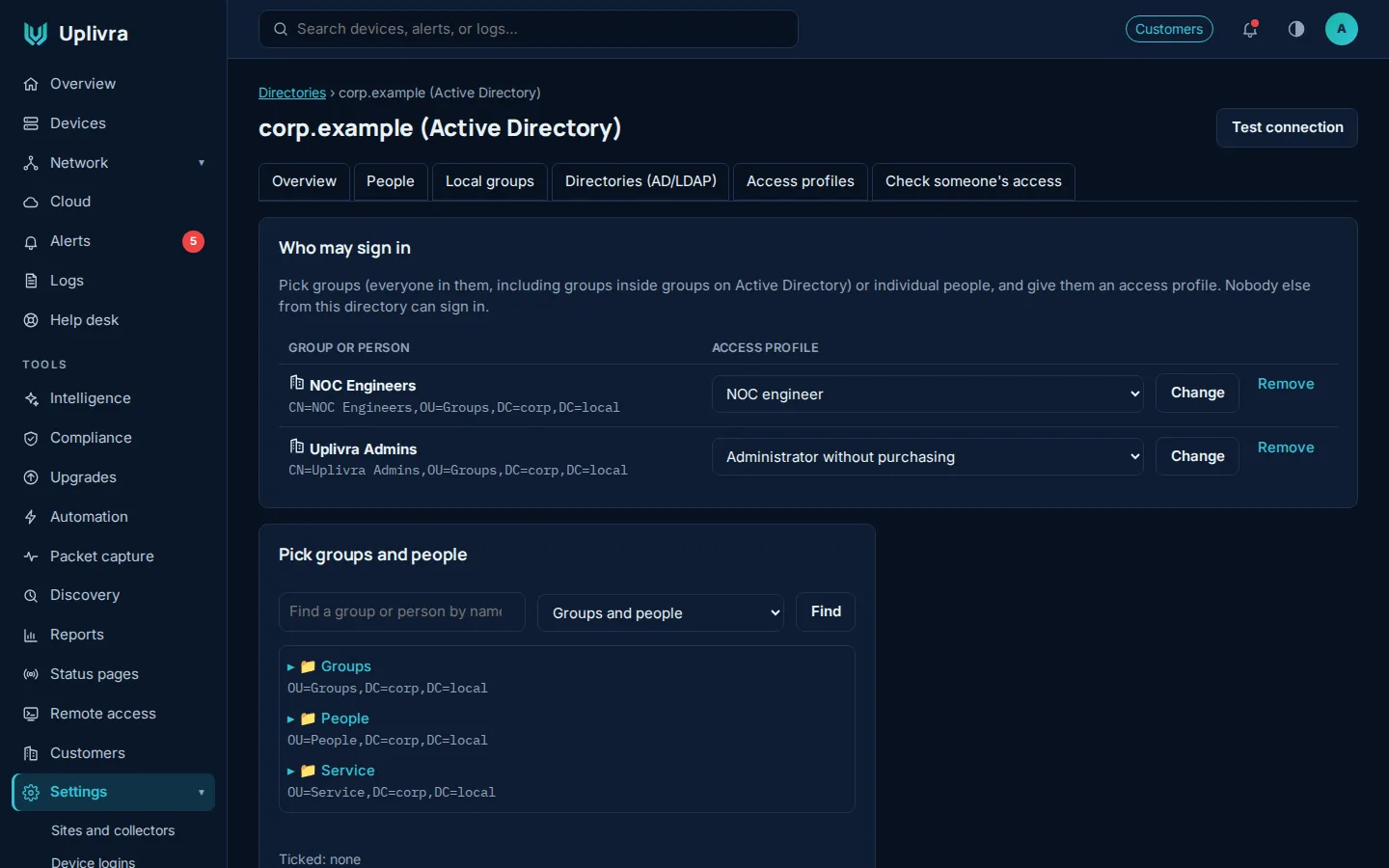
Settings › People and access › Directories › Connect a directory. You can connect several (for example one per domain, or an MSP's directory plus a customer's):
- Enter the server (
ldaps://dc01.corp.example:636is recommended), a read-only service account, and the base DN. Paste your company's CA certificate if the domain controller uses one. - Test checks the connection and the account.
- Pick groups and people from the directory tree: open OUs, tick groups or single people, and give each an access profile.
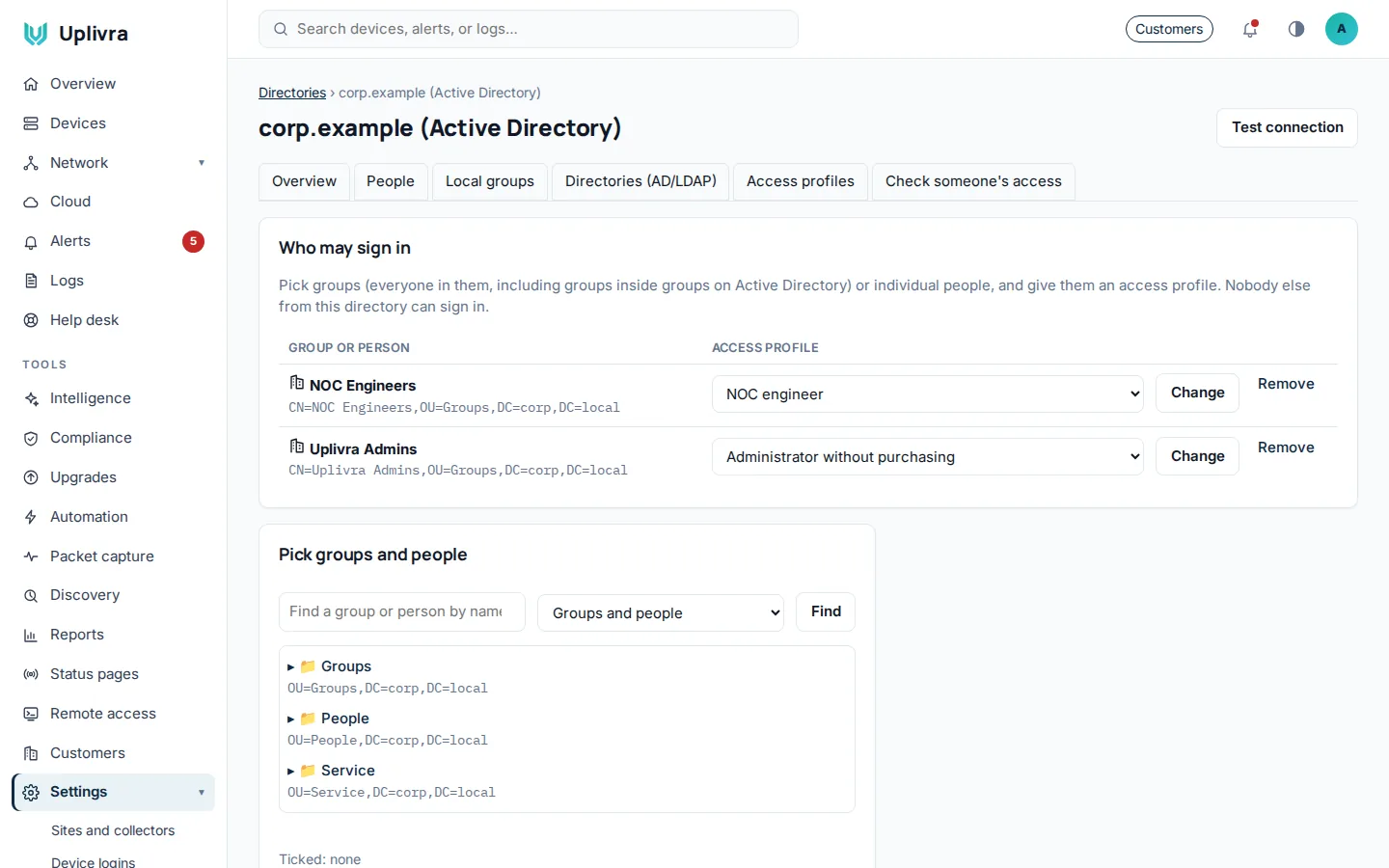
Sign-in: when a directory is connected, the sign-in page offers the company account first, and people can switch to a local Uplivra account. Keep at least one local administrator in case the directory can't be reached. Usernames can be typed as name, DOMAIN\name or name@domain.
The service account's password is stored encrypted, never shown again, and never sent to browsers.
Single sign-on (optional)
Uplivra can also let people sign in with Microsoft Entra ID (Office 365), Google Workspace, Okta or any other OpenID Connect provider. It's off until you turn it on under Settings › People and access › Single sign-on. Local accounts and directory accounts keep working next to it.
- At your provider, register a web application. Set its redirect (reply) address to the one shown on the Uplivra page: your server's address followed by
/login/sso/callback. - Copy the issuer, application (client) ID and a client secret into Uplivra: - Entra ID:
https://login.microsoftonline.com/<your tenant ID>/v2.0(use your own tenant ID, notcommon) - Google:https://accounts.google.com- Okta:https://<you>.okta.com - List the email domains allowed in. People from other domains are refused even if the provider signs them in.
- Choose what happens to people who don't have an Uplivra account yet. Either refuse them, so an administrator adds people first (recommended), or add them with an access profile you pick, such as Viewer.
The sign-in page then shows Sign in with … under the usual form.
Security:
- Uplivra checks every sign-in against the provider's published keys, and only accepts a verified email.
- Accounts created by single sign-on stay tied to that person at the provider, so a reused email address can't take them over.
- People who turned on Uplivra two-step sign-in are still asked for their code.
- The client secret is stored encrypted.
- Every sign-in is in the audit log.
MSPs: staff access and customer control
For MSPs using multi-tenant Uplivra:
- Give your engineers, technicians and NOC different profiles through your own directory groups or local groups. Grant access to all customers or to chosen customers only.
- Each customer has the final say. In their installation, under Your MSP's access, a customer's administrator chooses:
- Full: your staff get what you gave them.
- Limited: only the permissions the customer ticks, optionally tighter still for particular staff or groups.
- Locked: nobody from the MSP can work in their installation. Monitoring and alerting keep running. The customer sees a warning and has to confirm before locking, and can unlock at any time.
- Whatever the customer allows is the ceiling: an MSP profile is always cut down to it. Every change is in both audit logs.
Encryption evidence for auditors
Settings › Encryption evidence (for people with the Show encryption evidence permission, such as Auditors) shows, on demand:
- In transit: the TLS versions and cipher suites the server accepts, the certificate, and how collectors are pinned.
- At rest: which stored secrets are encrypted (device logins, directory passwords, keys) and with what, how passwords are hashed, and whether the database connection uses TLS.
- A live test that encrypts and decrypts with the server's key right then.
- What isn't covered (for example disk encryption on your own server), so the report is honest.
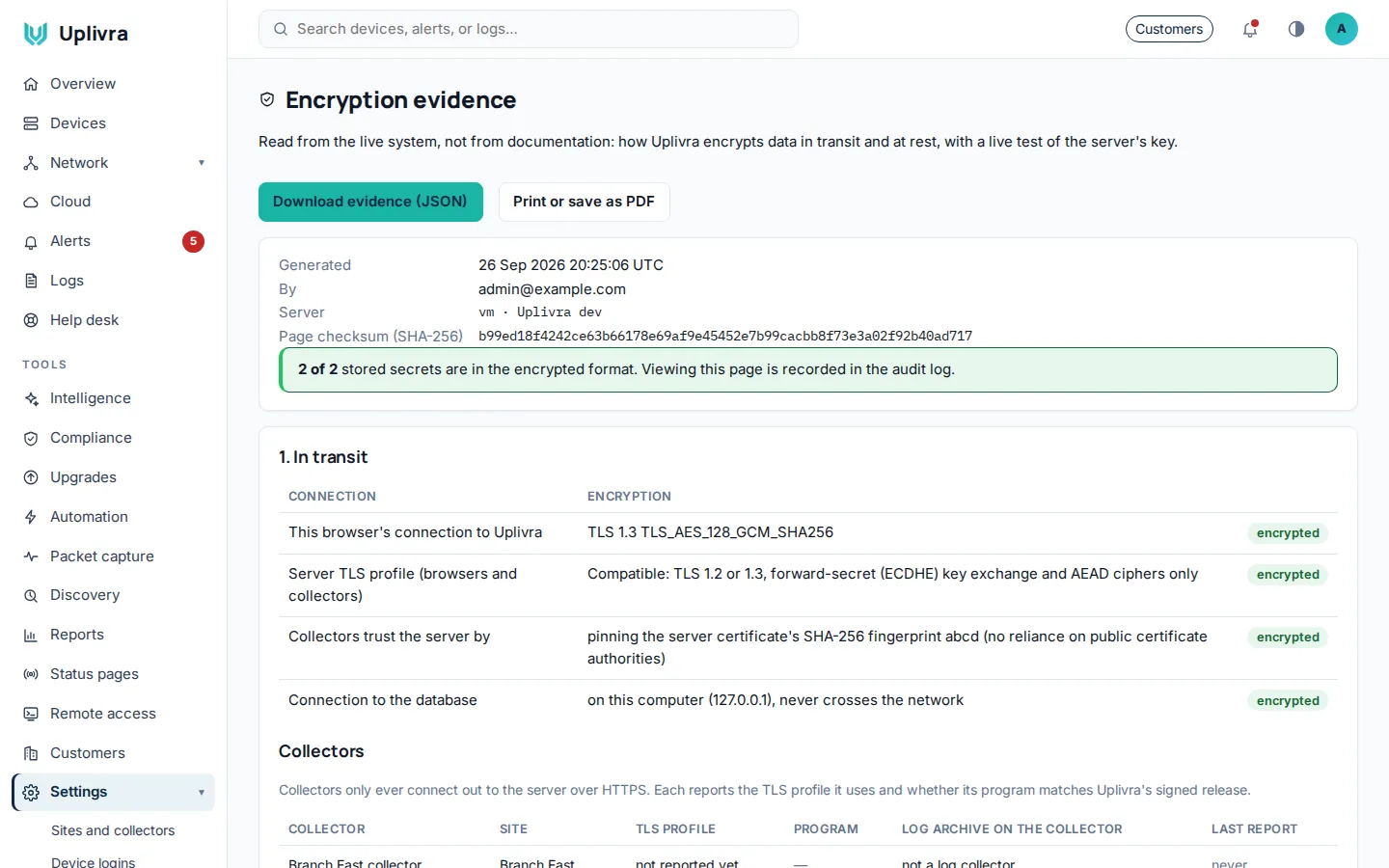
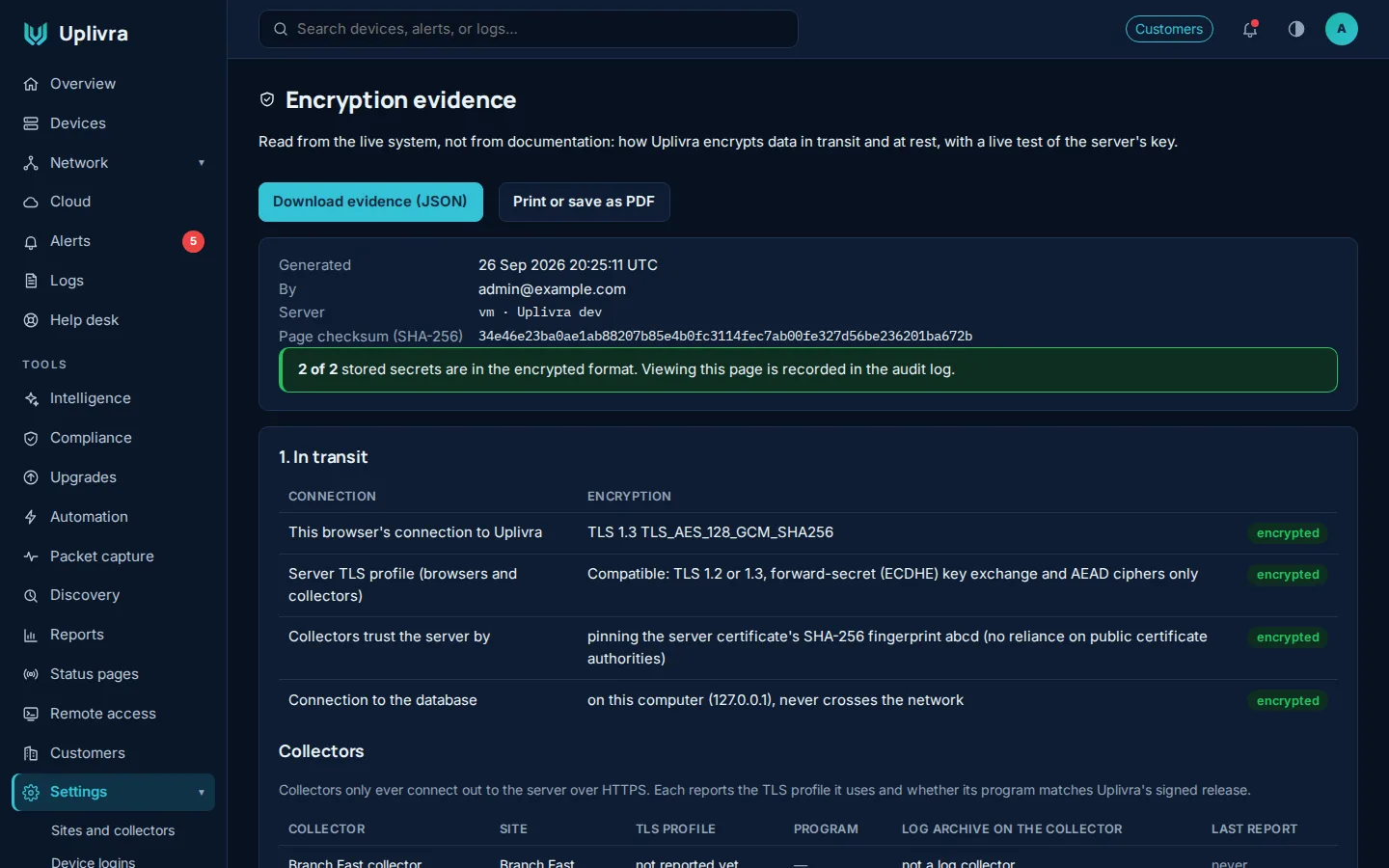
Export gives a JSON file with a SHA-256 so the evidence can be filed; the page prints cleanly too. Opening and exporting are recorded in the audit log.