
Home › Install guides › Packet capture: capture collectors and SPAN ports
Install guide · Packet Capture (capture collector) and Network Pro (short captures)Packet capture: capture collectors and SPAN ports
Install a packet capture collector that records SPAN ports around the clock and let your Uplivra server pull any moment, or take a short capture on any collector. Covers switch mirror commands, capture filters and display filters.
Uplivra Technologies LLC · Guide for Uplivra 26.10 · Updated 26 September 2026 · Latest version: https://uplivra.com/guides/packet-capture.html
What a collector can see
A collector records what reaches its network ports:
- Its own traffic and broadcasts, on the port it uses to reach Uplivra (the management port). This is enough for "can the collector reach the file server?" questions.
- Traffic between other devices, when a switch copies it to a spare collector port. That copy is called a SPAN or mirror port. Use it to see what a server, firewall or phone is really sending.
Captures are short on purpose: up to 10 minutes on a collector, and 60 seconds on a router (120 seconds on a router with 8+ processors and 16 GB+ of memory). By default only the first 128 bytes of each packet are kept. That is enough to diagnose problems, but not enough to read contents.
There are two ways to capture:
| Packet capture collector | Short capture on any collector | |
|---|---|---|
| Records | All the time, in a rolling window | Only while a capture runs (up to 10 minutes) |
| Catches what happened before an alert | Yes: Uplivra pulls 3 minutes before to 30 seconds after | Only if a capture was already running |
| Hardware | A computer or VM with 2+ network ports, only for capture | Any collector (a spare port for SPAN) |
| License | Packet Capture: Free, Lite, Standard or Pro, per capture collector | Network Pro |
Set up a packet capture collector
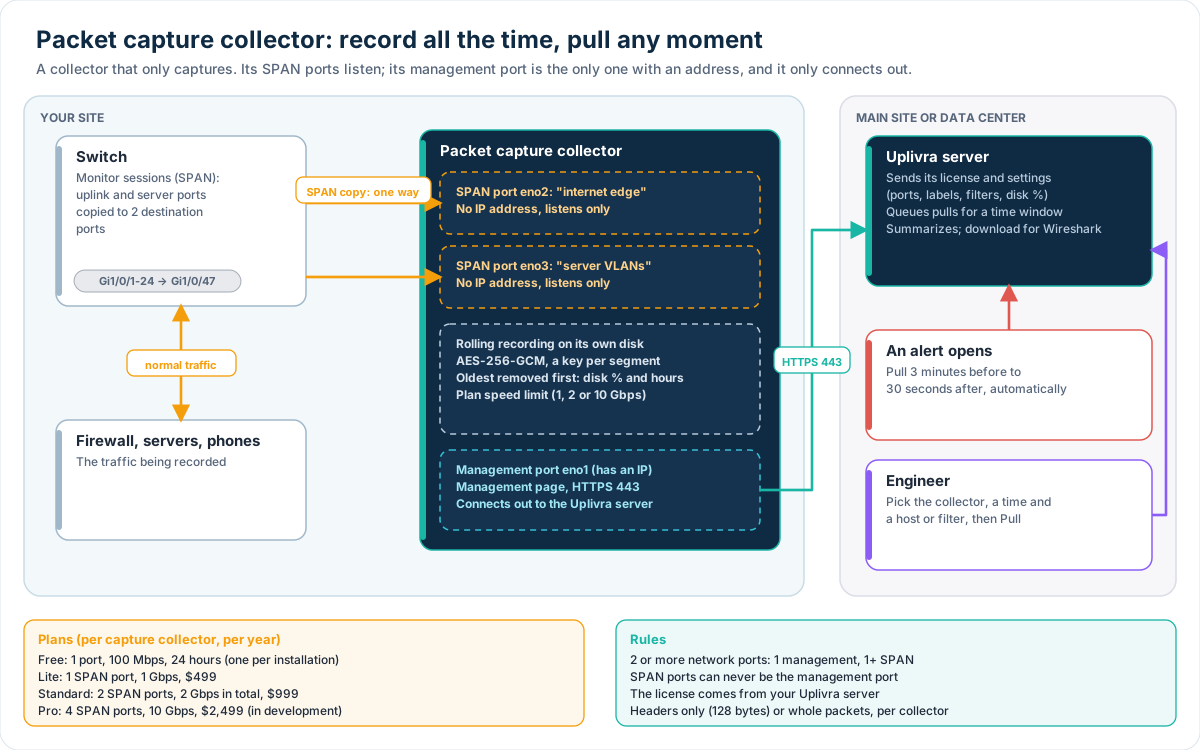
A packet capture collector does one job: it records the traffic a switch mirrors to it. It runs no checks and receives no logs. It still has its own management page, and it gets its license and settings from your Uplivra server, so nothing is recorded until your server's license covers it.
What you need
- 2 or more network ports. 1 for management (it gets an IP address and reaches your Uplivra server over HTTPS 443) and 1 or more for SPAN (no address, listen only). A SPAN port can never be the management port.
- A big disk for the recordings. The collector keeps as much as fits in 80% of the disk (you can change this). As a guide, a link averaging 100 Mbps fills about 1 TB a day with whole packets, and about a tenth of that with headers only.
- At least 4 cores, 8 GB of memory and 500 GB of disk; 8 cores, 16 GB and 2 TB or more is better for 1 Gbps and above.
- Network cards that match the SPAN traffic: a 1 Gbps port can't receive a 10 Gbps mirror.
| Plan | SPAN ports | Recording speed | Price per capture collector |
|---|---|---|---|
| Free | 1 | 100 Mbps, last 24 hours | $0 (one per installation) |
| Lite | 1 | 1 Gbps | $499 a year |
| Standard | 2 | 2 Gbps in total | $999 a year |
| Pro | 4 | 10 Gbps | $2,499 a year (in development) |
1. Install it
Appliance (easiest). Download the packet capture collector appliance from the portal's Downloads page (VMware OVA, Hyper-V VHDX, Proxmox/KVM qcow2 or the installer ISO). The OVA already has 2 network adapters: VM Network for management and SPAN for the mirror. Before the first start:
- Make the disk as large as you need for the recordings. The appliance grows into it on first boot.
- Connect the second adapter to the port group or virtual switch that receives the mirrored traffic. On VMware, that port group needs Promiscuous mode: Accept (Hyper-V: the adapter's Port mirroring mode: Destination; Proxmox: a bridge with the mirrored physical port and no IP).
On first start the setup asks only what a capture collector needs.
Your own Ubuntu computer. Install Uplivra as for any collector (see the Linux collector guide), then run sudo uplivra setup and choose Packet capture collector.
2. Answer the setup questions
- The management port: the port with the address. Give it a fixed address if you can.
- The SPAN ports: setup lists the other ports and suggests them all. They get no address, no DHCP, no IPv6 and no link-local address, so the collector can't be reached through them and never sends on them.
- Where to keep the recordings: a folder on the big disk (normally
/var/lib/uplivra-collector/capture). - Your Uplivra server's address and a setup code (Settings › Sites and collectors › your site › Connect a collector), or connect later from the management page.
- The management page port (443) and its password.
Firewalls between the collector and your server only need TCP 443 out from the management port. uplivra ports -mode capture prints the full list.
3. Mirror the switch ports
Point a switch SPAN (monitor) session at each SPAN port. The commands for Cisco, Aruba, Juniper and UniFi are below.
4. Choose a plan and turn the ports on
In Uplivra, open Settings › Sites and collectors, then the capture collector. The Packet capture section shows each SPAN port's link, speed and drops, and lets you set:
- Plan: which plan this collector uses (the license decides how many of each you have; one collector can use the Free plan).
- Label and filter per port, for example
internet edgeandnot port 22, and turn ports on or off. The plan decides how many ports record. - Disk allowance (80% by default) and hours to keep.
- Headers only (128 bytes per packet) or whole packets.
The collector's own management page shows the same status, and whether the license has arrived.
5. Pull packets
On Packet captures, under From a packet capture collector, pick the collector, the last 5, 15 or 60 minutes or a from/to time, and optionally a host and a capture filter (up to 24 hours per pull). Uplivra asks the collector for just those packets, then shows the summary and packet list as for any capture.
To catch the moments before an alert, add a rule under Packet captures › Capture automatically when an alert opens (for one device or any device). When a capture collector is recording, Uplivra uses it instead of a live capture: it prefers one at the device's site, waits 40 seconds, then pulls 3 minutes before to 30 seconds after the alert opened, filtered to the device's address.
Short captures on any collector
Any collector can capture for a short time (Network Pro). The rest of this guide covers it, and the switch commands apply to capture collectors too.
Set up a SPAN port
You need a collector with two network ports: one to reach Uplivra (management), and one spare for the mirror. The mirror port must not be the management port. It gets no IP address, so nothing can reach the collector through it, and a busy mirror can't crowd out the collector's own connection.
1. Cable it
Connect the collector's spare port (for example eth1) to a free port on the switch (for example Gi1/0/48).
2. Bring the port up without an address
On an Ubuntu collector, create /etc/netplan/60-span.yaml with:
network:
  version: 2
  ethernets:
    eth1:
      dhcp4: false
      dhcp6: false
      optional: true
then run sudo netplan apply. Uplivra appliances run Ubuntu, so the same steps work there. Check it with ip -br link: eth1 should say UP with no address.
3. Tell the switch what to copy
Cisco IOS (encapsulation replicate keeps VLAN tags, so you can filter on vlan 20):
monitor session 1 source interface Gi1/0/10 both
monitor session 1 source vlan 20 rx
monitor session 1 destination interface Gi1/0/48 encapsulation replicate
Aruba CX:
mirror session 1
 source interface 1/1/10 both
 destination interface 1/1/48
 enable
Juniper EX:
set forwarding-options analyzer SPAN input ingress interface ge-0/0/10
set forwarding-options analyzer SPAN input egress interface ge-0/0/10
set forwarding-options analyzer SPAN output interface ge-0/0/47
Ubiquiti UniFi: Devices › (switch) › Ports › (port 48) › Port profile Mirroring, then choose the port to mirror.
4. Check Uplivra sees the port
On Packet capture, open Collector network ports. The spare port shows as good for a SPAN port (up, no address); the management port is marked management.
5. Capture
Choose the site, enter the interface (eth1), tick This interface is plugged into a switch's SPAN / mirror port, add a capture filter if you want one, and start.
While a SPAN capture runs, the collector listens promiscuously on that port only (it accepts frames addressed to other devices). It goes back to normal by itself when the capture ends. VLAN tags are kept even when the network card removes them, so VLAN filters work on trunk mirrors.
Mirror only what you need. A mirror of a busy uplink can send more than the collector's port can carry; the switch then drops copies, and the capture will be missing packets.
Capture filters: what gets recorded
Capture filters use the tcpdump style most network engineers know:
| Filter | Records |
|---|---|
host 10.0.0.5 | to or from 10.0.0.5 |
src host 10.0.0.5 / dst host 10.0.0.5 | from / to it only |
net 10.1.0.0/16 | to or from anything in that network |
port 443, dst port 53, portrange 5060-5070 | by TCP/UDP port |
tcp, udp, icmp, arp | by protocol |
vlan 20 | frames tagged with VLAN 20 (on trunk mirrors) |
host 10.0.0.5 and port 443 | combine with and, or, not and brackets |
The collector's own connection to Uplivra is always left out.
Display filters: what the packet list shows
After a capture, the Packets list on the capture's page takes Wireshark-style display filters. Capture-filter words work there too.
| Filter | Shows |
|---|---|
ip.addr == 10.0.0.5 | to or from it (ip.src, ip.dst for one direction; ip.addr == 10.0.0.0/24 for a network) |
tcp.port == 443, udp.dstport == 53 | by port |
tcp.flags.syn && !tcp.flags.ack | connection attempts |
tcp.flags.reset == 1 | refused or cut connections |
dns, http, tls, ssh, snmp, syslog, bgp, dhcp, ntp | common services by their ports |
frame.len > 1000, ip.ttl < 5, icmp.type == 3 | by size, hop limit or ICMP type |
vlan.id == 30 | by VLAN |
tcp contains "GET" | payload text (whole-packet captures) |
Combine with && (or and), || (or or), ! (or not) and brackets. Problem packets (resets, ICMP errors, failed DNS lookups) are highlighted. Download for Wireshark gives you the full file.
Who can capture
Starting captures needs the Start captures permission; seeing and downloading them needs See and download captures (Settings › People and access). Every capture, download and filter is recorded in the audit log.